
How To Use Falcon Agent: Local Falcon's AI Agent for Local SEO
Last updated on 6/23/2026, 2:21 PM
How To Use Falcon Agent
Falcon Agent is Local Falcon's native AI agent that takes action on improving your local SEO visibility; now it does a lot more than just audit and advise. Falcon Agent is connected directly to your Google Business Profile and your Local Falcon account (in addition, it can actually visit your website to understand more), so when you ask it to do something, it goes and does it.
Previously known as Falcon Assist, Falcon Agent is the evolution into an active agentic automation tool: it replies to reviews, publishes posts, updates your GBP, monitors your AI visibility, runs geo-grid tracking scans, and can handle everything on a recurring schedule without you lifting a finger.
Chatting with Falcon Agent
Falcon Agent is available on every page in Local Falcon via the sidebar chat. Here, you can start a new conversation or open any past one without leaving whatever you're working on — so if you're looking at a report, comparing a competitor's listing, or auditing a GBP location, you can ask Falcon Agent for help or take action right from that context.
What you can ask Falcon Agent to do
Falcon Agent understands plain language requests. You don't need to use specific commands or navigate to a particular settings screen — though you can manage everything from Agent Settings, too, just in-case. Simply describe what you want to accomplish to get started.
Some things you can ask Falcon Agent to do directly in chat:
- Reply to a specific review, or ask it to respond to all new reviews (for example, all reviews with a certain star rating)
- Publish a post to one or more of your GBP locations or schedule recurring Google Business Profile Posts
- Update your business hours for a holiday or special event across one or many locations
- Optimize your GBP categories and services
- Run or schedule AI visibility scans or Google Maps scans for a set of keywords and/or locations
- Pull a report and analyze rankings, competitor performance, or review sentiment
- Check what AI platforms are saying about your brand
- Audit any business listing and recommend or apply improvements
Keep in mind that these are just a few examples of how you can use Falcon Agent to streamline your local SEO workflows via chat. If you can do something in Local Falcon or on your Google Business Profile, Falcon Agent can do it (and automate it) for you.
Taking action vs. getting answers
Falcon Agent can both answer questions and take real actions. When it takes an action — like publishing a GBP post or updating a business category — it confirms what it's doing before it proceeds, and every action is logged in your Agent Settings activity history, so you can review it at any time.
If you're not sure what Falcon Agent can help with, just ask! You can say something like "What can you do for my GBP?" and it'll give you a rundown based on your connected accounts.
Setting up automations from a Falcon Agent chat
You don't need to go to your Agent Settings page to set up recurring automations. Just tell Falcon Agent what you want to do and how often for example:
- "Post a weekend promotion every Friday at 9 AM across all my locations."
- "Reply to all new 4 and 5-star reviews within 2 hours, and thank them warmly."
- "Every Monday morning, run a Google Maps ranking scan for my top 5 keywords."
Falcon Agent will configure the automation, confirm the details with you, and start running it. You can manage, adjust, or turn off any automation from Agent Settings, or simply by asking in chat.
Creating Automations From Agent Settings
While you can set up automations directly from chat, the Agent Settings page gives you a dedicated place to review, manage, and fine-tune everything Falcon Agent runs on your behalf.
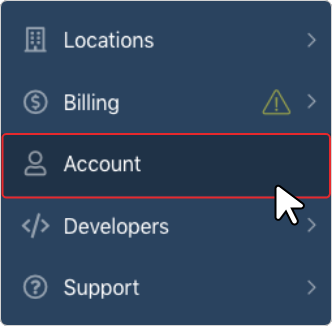
To get there:
- Click "Account" in the main navigation menu of your Local Falcon dashboard
- Select "Agent Settings" under "Manage Your Account"
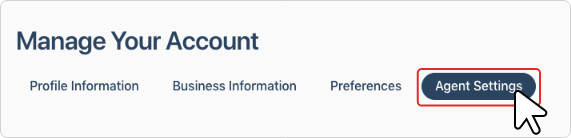
Step 1: Add Locations to Agent Monitor
Before Falcon Agent can take automated actions on a listing, you need to add it to Agent Monitor.
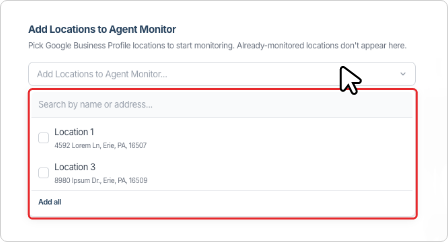
- In the "Add Locations to Agent Monitor" field, click to open the location selector
- Choose the Google Business Profile locations you want Falcon Agent to monitor
Note that locations already being monitored won't appear in the list.
Once a location is added, it becomes eligible for automated review responses, scheduled posts, and any other custom recurring actions you configure.
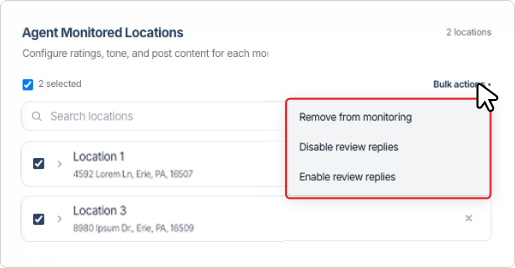
Step 2: Create an Automated Action
The "Automated Actions" section is where you create and manage the recurring work Falcon Agent handles on your behalf.
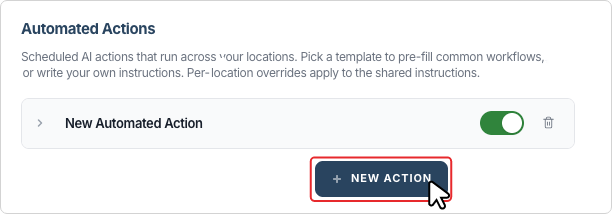
- Click the "+ New action" button
- Choose a template to pre-fill a common workflow, or start from scratch with your own custom instructions
- Write your instructions — describe what you want Falcon Agent to do each time this action runs. Be specific: if applicable, include the tone, format, any rules it should follow, and what to avoid. The clearer your instructions, the more consistent the output.
- Set the schedule — choose how often the action runs: daily, weekly, monthly, or on specific dates
- Select which locations this action applies to — you can apply it to all monitored locations or choose a specific subset
- If needed, add per-location overrides — these let you give a specific location different instructions than the rest without creating a separate action.
- Click "Save" to activate the action. It will begin running on its next scheduled trigger.
Step 3: Review Your Activity Log
Every action Falcon Agent takes is recorded in the "Activity" section at the bottom of the Agent Settings page. After your automations start running, this is where you can verify they're working as expected.
For each entry, you'll see:
- What action ran
- When it ran
- Which location it affected
If something doesn't look right, return to the action and adjust your instructions, schedule, or location settings.
Managing Existing Automations
Once you have automations running, you can return to Agent Settings at any time to:
- Edit an action's instructions, schedule, or location targets
- Pause or disable an action for a specific location without deleting it
- Delete an action you no longer need
- Review activity to audit what ran and when
You can also ask Falcon Agent in chat to update or turn off any automation — you don't have to come back to this page if you'd rather just describe the change you want.
Category:Local Falcon AI
Tags:falcon aifalcon agent