
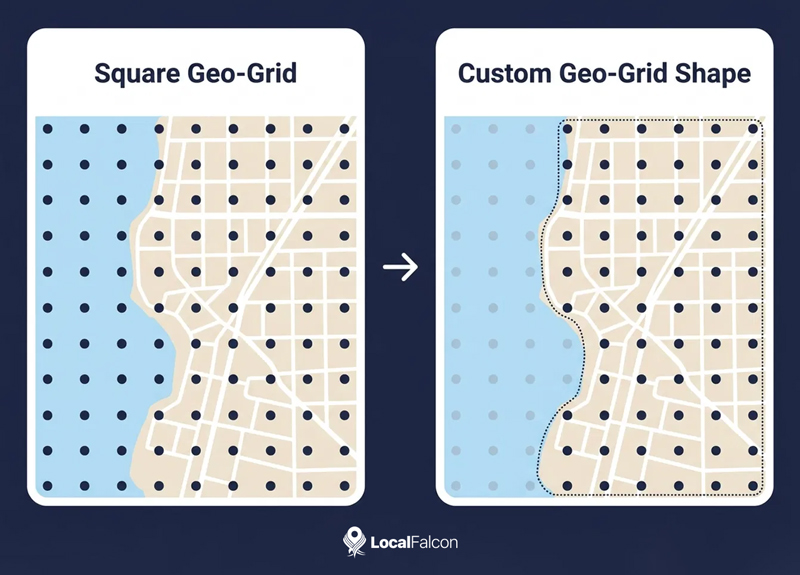
When you run a local rank tracking or AI visibility scan with Local Falcon, the default geo-grid shape is a square. While this offers the most comprehensive coverage of a geographic area, it doesn't always perfectly represent where a business's customers come from.
That's why Local Falcon allows for full customization of the geo-grid coverage for your local and AI search visibility scans.
Flexible geo-grid coverage is not new to Local Falcon, but we recently added a new way to quickly create fully custom geo-grid shapes for any location: the Pin Toggle Lasso tool. Rather than simply clicking to disable individual grid points, you can use this tool to trace an outline around the exact neighborhood or service area you want to track your local or AI search visibility in.
Creating Custom Geo-Grid Shapes With the Pin Toggle Lasso Tool
The Pin Toggle Lasso works on top of the geo-grid you already set up for a scan. You start with a standard grid that covers your whole area, then use the lasso to decide which scan points stay on and which come off. Local and AI visibility data gets collected inside your outline, and everything outside it is skipped.
You can use it in two places: Quick Scans and Campaign Scans.
Using the Pin Toggle Lasso for a Quick Scan
- Start a new Quick Scan.
- Set the radius and grid size so the grid covers the full area you want to track.
- Click Disable All Map Pins if you plan to trace the area you want to keep. Skip this step if you would rather trace the areas you want to remove.
- Click the Pin Toggle Lasso button in the bottom right-hand corner of the map.
- Click and hold near a point close to the edge of your target area.
- Trace around the full area, moving from point to point.
If a stray point ends up on or off by mistake, click it to toggle it back. You can also hit the Enable All Map Pins or Disable All Map Pins button to start over.
Using the Pin Toggle Lasso for a Campaign Scan
Campaigns let you customize the geo-grid coverage for every location you track, and each location can have its own shape.
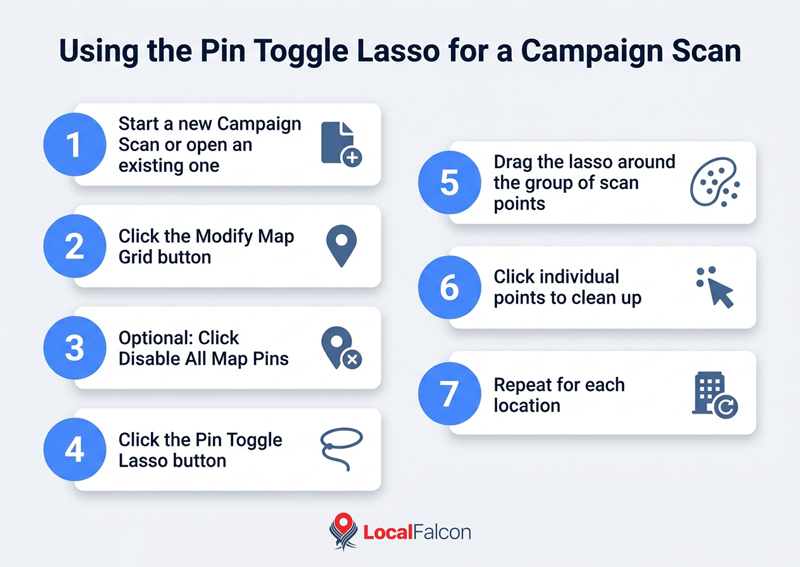
- Start a new Campaign Scan or open an existing one to edit.
- Click the Modify Map Grid button (the map pin icon) next to a location.
- Click Disable All Map Pins if you want to build the shape by turning points on. Skip it if you would rather turn points off.
- Click the Pin Toggle Lasso button in the top right-hand corner of the geo-grid pop-up.
- Drag the lasso around the group of scan points that make up your target area.
- Clean up any individual points by clicking them, or reset the grid with the Enable All Map Pins or Disable All Map Pins button.
- Repeat for each location in the campaign.
Once the geo-grid coverage is set, your scans only collect local ranking and AI search visibility data from the points you left on, so your reports accurately reflect the areas your customers actually come from.
When To Set Custom Geo-Grid Coverage for Local Rank Tracking and AI Visibility Scans
A square geo-grid is a good default, but it treats every point on the map as equally relevant. Sometimes that isn't true. These are the situations where a custom shape gives you cleaner, more useful data.
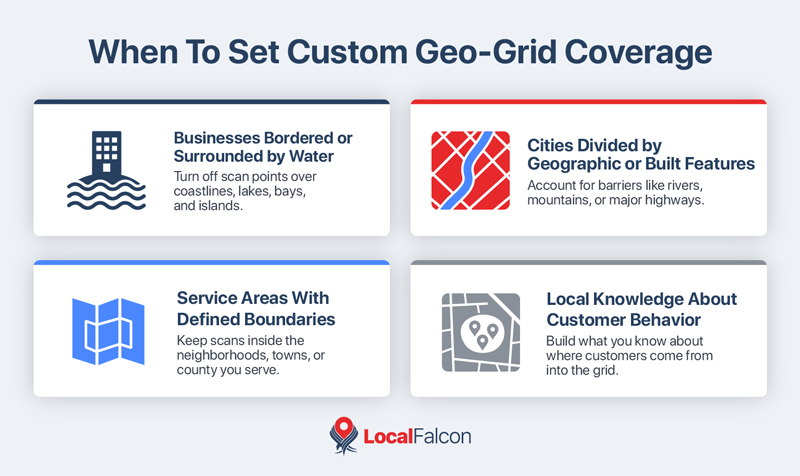
Businesses Bordered or Surrounded by Water
This is the most obvious case. If a business sits on a coastline, a lake, or a bay, a square grid will drop a chunk of its scan points onto open water. Nobody is searching for a plumber or a dentist from the middle of a lake, so the data from those points doesn't tell you anything about real customer behavior.
With the Pin Toggle Lasso, you can trace around the land your customers actually live and work on and turn off every point over water. The same goes for businesses on a peninsula or an island, where the grid might otherwise stretch well past the shoreline.
Cities Divided by Geographic or Built Features
Some cities are cut up by features that make it a hassle to get from one side to the other. A river with few bridges, a mountain ridge, a major highway, a rail yard, or a large park or airport can all split a metro area into pockets that don't mix much.
If those barriers keep people on one side from traveling to a business on the other, scan points across the divide are collecting rankings from searchers who were never going to visit. A custom geo-grid shape lets you track local rankings or AI visibility on the side of the barrier your customers actually come from, instead of across the whole map.
Service Areas With Defined Boundaries
Service-area businesses often only work within a set territory, such as a group of adjacent neighborhoods in a dense urban area, or a handful of small towns or a specific county in a rural area. A square grid will usually spill past those lines. Tracing the lasso around the real service area keeps your scans focused on the places the business is willing to travel to.
Local Knowledge About Customer Behavior
Sometimes the best reason for a custom geo-grid shape is that you simply know the area. Maybe nobody from one neighborhood ever drives to another for a particular service, because there's a well-established option closer to home. Maybe a business's customers cluster around a few specific neighborhoods and rarely come from anywhere else.
If you know where the customers are, you don't need to track visibility across areas where they aren't. A custom grid lets you build that on-the-ground knowledge directly into your scans.
Key Takeaways
- A square geo-grid gives the most complete coverage of an area, but it doesn't always match where a business's customers actually come from.
- The Pin Toggle Lasso lets you trace a custom shape around a neighborhood or service area, so your local rank tracking and AI visibility scans only collect data from the points that matter.
- The lasso works in both Quick Scans and Campaign Scans, and each location in a campaign can have its own shape.
- Custom coverage is most useful when a grid includes irrelevant points, such as areas over water, parts of a city cut off by rivers, highways, or other barriers, or places outside a defined service area.
- Local knowledge counts too. If you know customers in one neighborhood don't travel to another for a given service, you can build that into the grid.
- Cleaner scan areas mean your reports reflect real customer behavior instead of data from searchers who were never going to visit in the first place.
Your customers don't live in a perfect square, and your scans don't have to be one either. With the Pin Toggle Lasso, you can shape your geo-grid around the areas that matter most to your business and get local rank tracking and AI visibility data you can actually act on.
Frequently Asked Questions
What is the Pin Toggle Lasso in Local Falcon?
It's a tool that lets you trace an outline on the geo-grid to turn groups of scan points on or off at once, so you can create a custom scan shape for any location.
Does the Pin Toggle Lasso work for both local rank tracking and AI visibility scans?
Yes. You can customize the geo-grid for both local rank tracking and local AI visibility tracking scans.
Can I use the lasso in Quick Scans and Campaign Scans?
Yes. It's available in both.
Can each location in a campaign have its own grid shape?
Yes. You can customize the geo-grid separately for every location in a campaign.
What if I make a mistake while customizing my geo-grid coverage?
Click any individual pin to toggle it back on or off, or use the Enable All Map Pins or Disable All Map Pins button to start over.
Can I turn off scan points without using the lasso?
Yes. You can disable individual scan points by clicking on them, which works well if only a couple of points need to come off.