
Keeping your Google Business Profile active is one of the more tedious parts of local SEO, especially when you're managing multiple locations. Writing posts, logging into GBP, publishing them one by one, then doing it all over again next week adds up fast.
At enterprise scale, or for agencies managing a large volume of local business clients, staying on top of GBP posting is incredibly demanding, meaning it often gets deprioritized.
Falcon Agent takes that off your plate. With Local Falcon's built-in AI agent for local and AI SEO, you can schedule GBP posts to go out automatically on a recurring basis, with custom instructions per location so the content actually reflects each business rather than sounding copy-pasted across the board.
Here's how using Falcon Agent as your GBP post scheduler works and how to get it set up.
Why Posting to GBP on a Regular Schedule Matters
Before getting into the how, let's make sure you understand why a consistent GBP posting schedule matters in the first place.
GBP is not social media. When someone finds your business profile in Google Search or Maps, they're not casually browsing a feed. They're close to making a purchase decision. GBP posts appear directly in that decision-making moment, which means they're a bottom-of-funnel tool more than anything else.
Done well, GBP posts can answer the questions that push someone from "maybe" to "yes." Things like current offers, service highlights, seasonal updates, upcoming events, and anything else that gives a searcher a reason to act. Businesses that post consistently on Google Business Profile signal to potential customers that they're active, attentive, and worth contacting or paying a visit to.
There's also an engagement dimension. A Google Business Profile that gets updated regularly tends to see better interaction than one that's been dormant for months. And from a local SEO standpoint, activity on your GBP contributes to overall profile health. It's not a ranking silver bullet, but it's part of maintaining a profile that performs.
The challenge is the consistency part. Most businesses post sporadically because creating content and remembering to publish it regularly is genuinely difficult to do, especially when managing multiple locations and profiles. Automating that process with a GBP post scheduler tool like Falcon Agent removes the friction entirely.
Before You Schedule GBP Posts: What You Need
To automate GBP posts through Falcon Agent, your locations need to be imported from a connected Google account that manages them in GBP.
To confirm your locations are set up correctly, go to your Saved Locations and check that your Google account's profile picture appears next to each one. If it does, you're ready to go.
How To Schedule GBP Posts With Falcon Agent
There are two ways to set up automated GBP posting using Falcon Agent: through the Falcon Agent chat, or from the Agent Settings page. Both accomplish the same thing, with the chat method generally being faster and more intuitive (like talking to a local SEO team member), while Agent Settings give you a more structured interface to work from.
Option 1: Via the Falcon Agent Chat (Recommended)
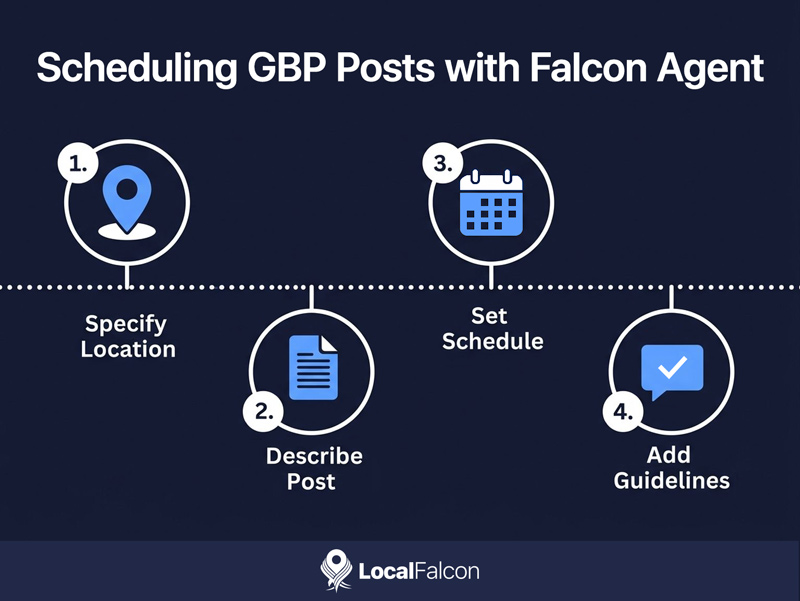
This is the quickest way to get a recurring GBP post schedule up and running. Open a chat with Falcon Agent and give it the details it needs:
- Tell Falcon Agent you want to schedule GBP posts and specify the location or locations.
- Describe the type of post you want (promotion, service highlight, event, seasonal update, or anything else).
- Set the schedule, for example "every Tuesday at 9 AM" or "first Monday of each month."
- Include any content guidelines, like tone, whether to include a CTA, things to avoid, must-mention items, and any example text or offer details.
Here's a simple prompt template that covers the essentials: "Schedule GBP posts for [Location(s)]. Post type: [offer/topic]. Post content rules: [tone + CTA + must include/avoid]. Schedule: [day/time + timezone]. Start date: [date]."
Falcon Agent will ask you follow-up questions as needed, configure the automation, confirm the final details with you, and start posting on schedule. You can review or edit the setup at any time in Agent Settings, and the Activity log shows exactly what's been posted.
Option 2: From Agent Settings
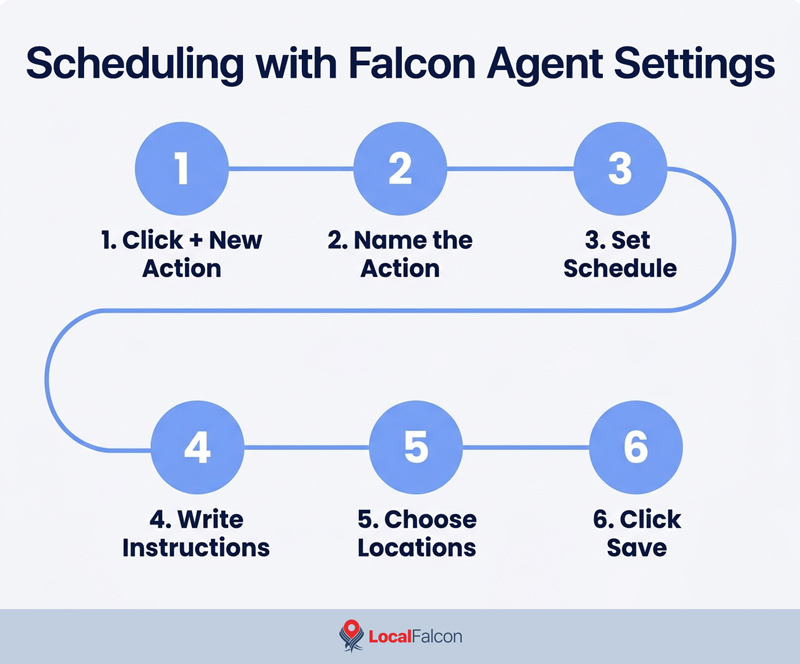
If you prefer to set things up manually or want to manage multiple automations in one place, head to Agent Settings in your Local Falcon account.
- Click "+ New Action" in the Automated Actions section.
- Name the action.
- Set the posting schedule.
- Write your content instructions from scratch or use the GBP post template as a starting point.
- Choose which locations to apply it to (all locations or specific ones).
- Click "Save."
The instructions you write here function as Falcon Agent's brief for every post it creates. The more specific you are, the better the output. Include post type, length, tone, CTA preferences, anything to avoid, and anything that should always be mentioned. You can even paste in an example post for Falcon Agent to use as a reference.
Again, your automated actions can be edited at any time, and the Activity section at the bottom of the Agent Settings page shows a log of everything Falcon Agent has posted.
How To Schedule GBP Posts Effectively: Best Practices
Getting your GBP post automation set up is the first step. Getting it to produce posts that actually drive results requires giving Falcon Agent solid instructions grounded in what makes GBP posts perform.
Write for the bottom of the funnel
People viewing your GBP posts are already searching for a business like yours. They're closer to a decision than a social media scroll. Posts should answer last-mile questions, including things related to pricing, availability, how to redeem an offer, or what to expect. Lead with the value in the first 100 to 150 characters, since that's what shows up in search snippets before someone clicks to expand.
Use a clear CTA
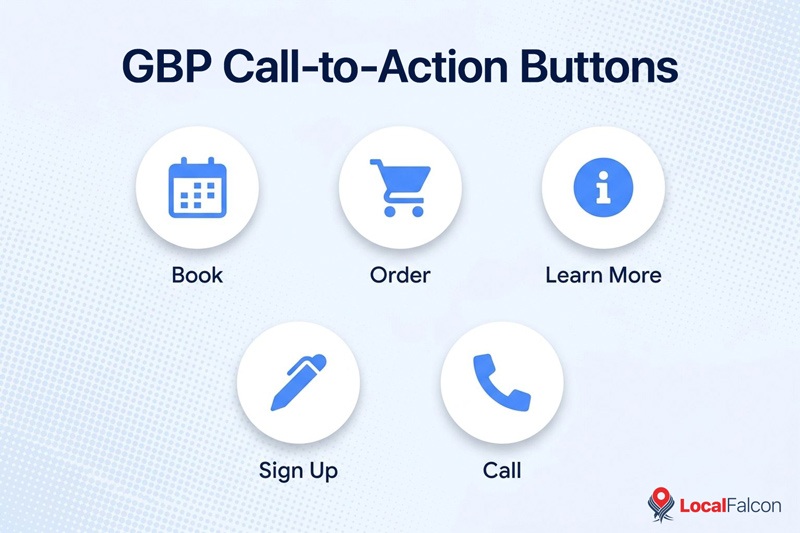
Ideally, every post should tell someone what to do next. Book, Order, Learn More, Sign Up, and Call are the available CTA button options in GBP. Pick the one that matches the action you want someone to take, and link to a specific landing page where they can complete it rather than a generic homepage. This will also help anyone using Google Search agents or agentic booking experiences to find and book local services.
Don't over-post
Posting too frequently can actually work against you by pushing your best content further down the profile before it has time to be seen. For recurring events, setting a start and end date for the month rather than reposting every week is a cleaner approach.
Keep GBP posts separate from social content
Social captions are written for awareness and engagement. GBP posts are written for conversion. Repurposing the same copy from Instagram or Facebook tends to underperform because it's not addressing the specific intent of someone searching for your business on Google.
Time your posts strategically
Publish event posts one to two weeks in advance so Google has time to index them. Align promotional posts with peak demand periods when relevant, such as holidays or seasonal high points.
Use high-quality visuals
A single strong image that shows the product, service, or experience outperforms a text-heavy graphic. Avoid including phone numbers or excessive text in images, as that can trigger rejection. One image or video per post is all you need.
Tag your links
If you're linking to a landing page, add UTM parameters so you can track what's actually driving traffic and conversions from GBP. Google's Campaign URL Builder makes this straightforward.
Conclusion
Scheduling GBP posts manually across multiple locations is the kind of task that's easy to let slip. Falcon Agent keeps it running in the background without requiring you to think about it week to week, while still giving you enough control over tone, content, and cadence to make sure what gets posted represents your business well.
Whether you set it up through the chat or Agent Settings, the end result is the same: your GBP stays active and your locations stay visible and engaging.
How To Schedule GBP Posts With Falcon Agent: Frequently Asked Questions
Can I schedule GBP posts for multiple locations at once with Falcon Agent?
Yes. When you configure an automated action, you can apply it to all of your imported locations or select specific ones. You can also give Falcon Agent per-location instructions to make posts more relevant to each individual location.
How often should I schedule GBP posts?
There's no universal answer, but more is not always better. Posting too frequently can push your best content off the front of your profile before it gets seen. A consistent weekly or biweekly cadence tends to work well for most businesses, with additional posts for events or promotions as needed.
What types of GBP posts can I schedule with Falcon Agent?
You can schedule any type of GBP post, including general updates, service highlights, promotions, seasonal content, and event announcements. Just specify the post type in your instructions and Falcon Agent will create content accordingly.
Do I need to connect Local Falcon to my Google account before I can schedule GBP posts?
Yes. Your locations need to be imported from a connected Google account that manages them in GBP. If you haven't connected your Google account yet, you'll need to do that first before Falcon Agent can post on your behalf.
Can I edit or pause my scheduled GBP posts?
Yes. Any automated action you've set up can be edited, paused, or deleted from the Agent Settings page in your Local Falcon account. The Activity section also shows a log of everything that's been posted so you can review output over time.